
Welcome to another integration tutorial. We’ll explore how to use Constellation to control the Dolby Atmos Music and Object Panners, in this case from Logic Pro X.
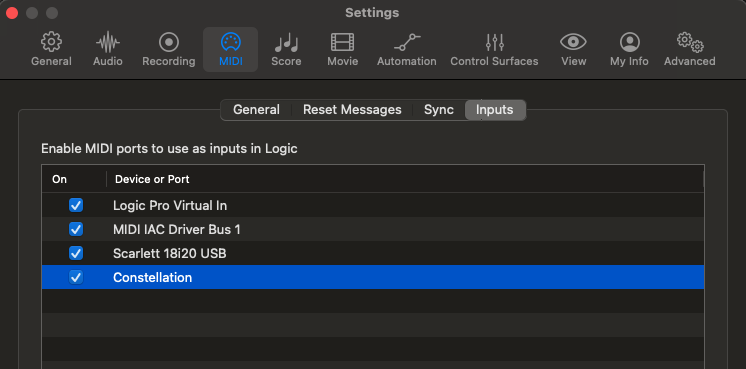
Let’s begin by verifying that Constellation is recognized as a MIDI device by Logic Pro. Go to Logic Pro → Settings → MIDI.
Under MIDI, check that Constellation is listed as a Device under Inputs.
At this point, we’re not receiving any data from the Satellites. That’s because we haven’t enabled MIDI output from the Ground Central yet.
Let’s head over to the device and configure that. Tap the three dots in the top-right corner of the Satellite View. Next, navigate to the MIDI Configuration section. Here, you’ll find up to five MIDI messages that Constellation can send simultaneously.
Let’s edit the first one. For this example, we’ll send Control Change data on MIDI Channel 1. You can set Control Change number, minimum value and maximum value. In this example we already set Control Change 1, from 0 to 127. Our Input Control is Roll. There are several parameters you can fine-tune, but for now, let’s just enable the message.
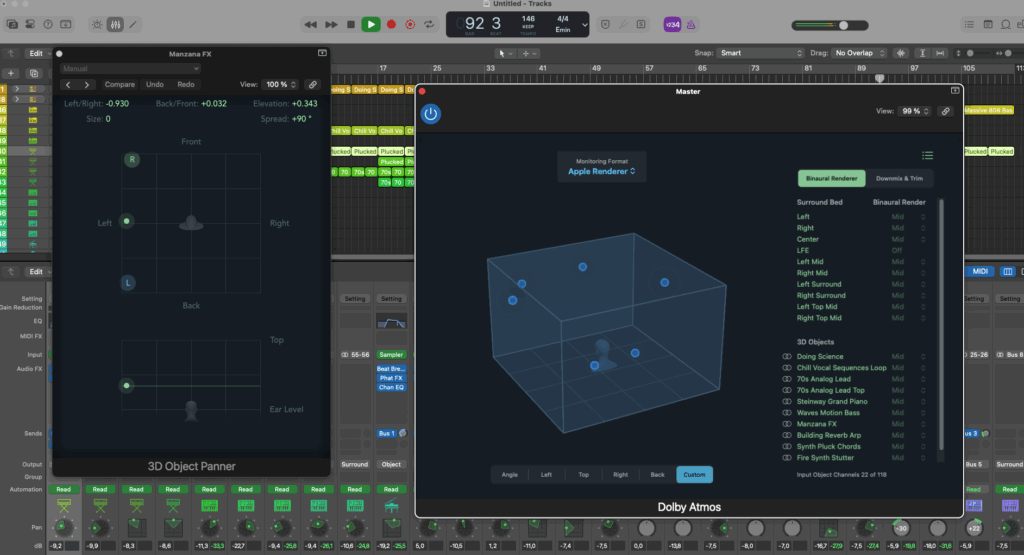
Now, back in Logic Pro, we opened a Dolby Atmos project template to show you how to use Constellation for Atmos panning.
Let’s select an object instrument, and open the Object Panner. From here, highlight the parameter you want to control, in this case, we want to control “Diversity”.
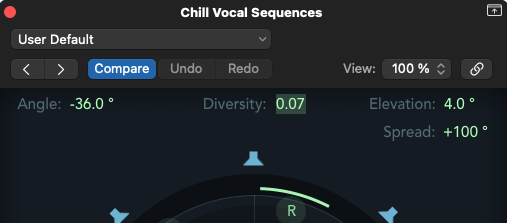
Enable the MIDI Learn mode by pressing Command + L to learn incoming MIDI data as a parameter controller.
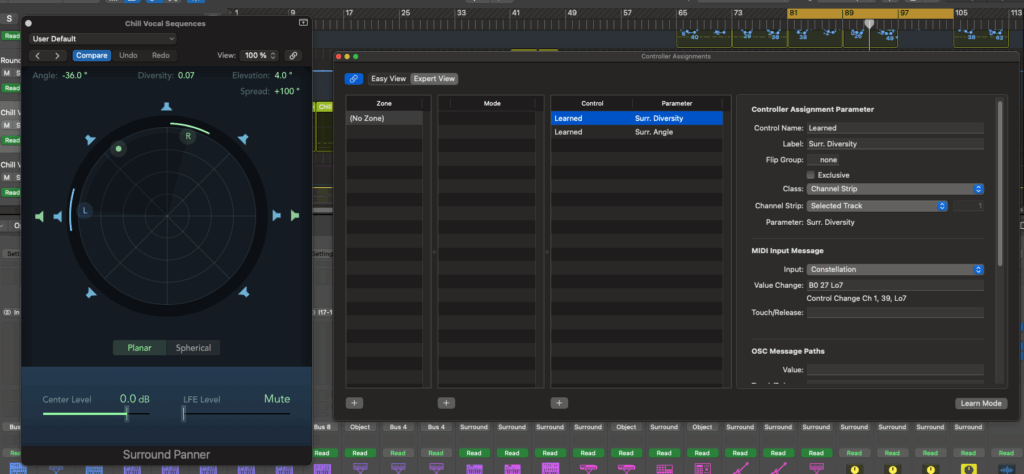
And that’s it! You’re now controlling the Atmos Panner using Constellation.