Upgrade procedure #
Follow these steps to update the firmware on your Ground Central and Satellites.
Step 1 #
Download the latest software release from the Software Releases page here. Once downloaded, look for the MJP Remote App inside the Remote app folder and follow Step 2.
Now uncompress the ZIP file, e.g. constellation_v1.0.1.zip.
Step 2 #
Open the MJP Remote app located inside the Remote app folder.
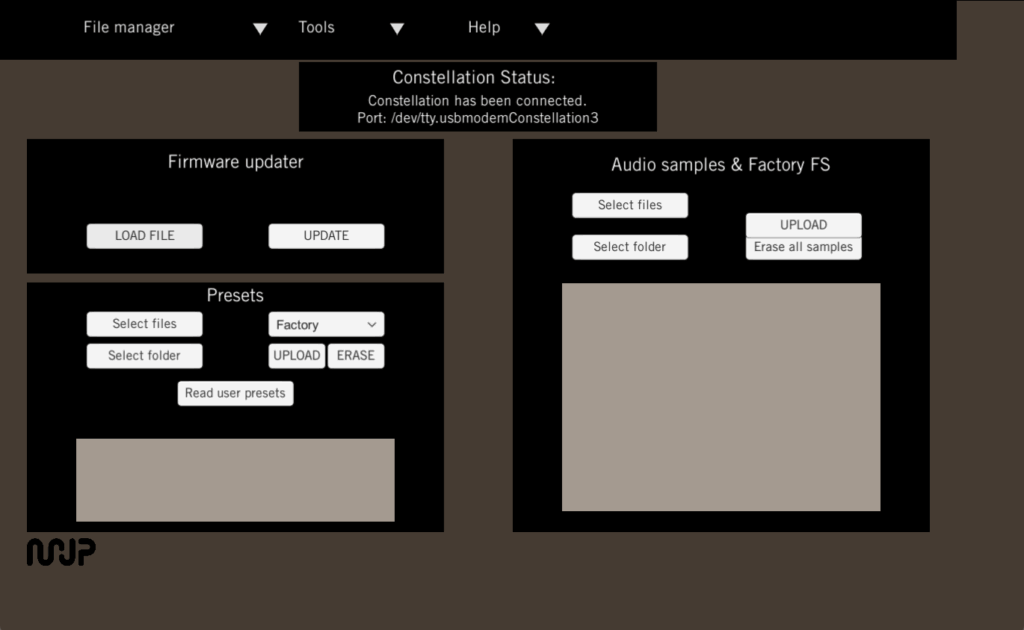
Step 3 #
Connect the Ground Central to your computer via the supplied USB-C cable.
Step 4 #
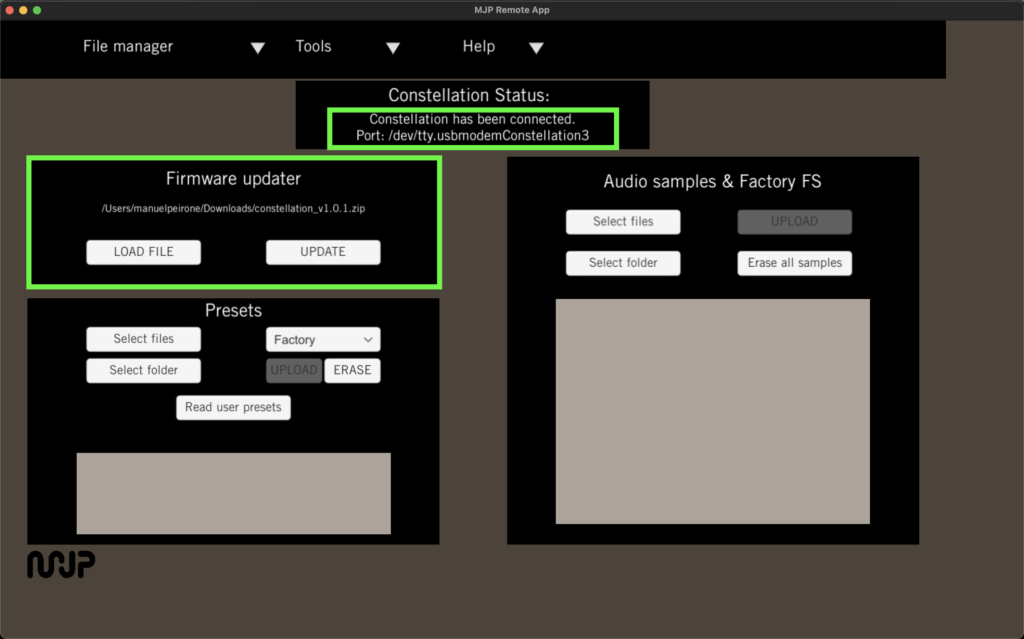
Once the App open, press LOAD FILE and select the ZIP file, e.g. constellation_v1.0.1.zip:
Step 5 #
Make sure the Satellites are placed as close as possible, ideally on top, of the Ground Central.
⚠️ Only if running firmware v1.0.0 – Turn only the Pink Satellite on. The rest of the Satellites should be powered off.
Step 6 #
Press UPDATE to start the firmware update.
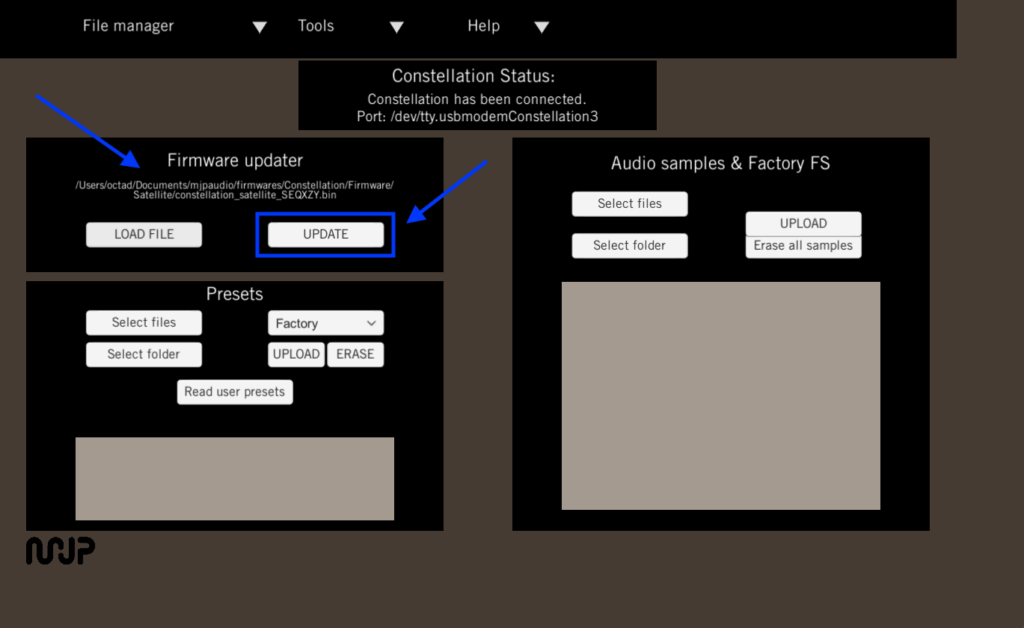


ℹ️ Once the process is complete, the Satellite will be turned Off. Turn it On and wait until the LED stops blinking.
Step 7 #
⚠️ Only if running firmware v1.0.0 – If you have more than one Satellite, turn the rest of the Satellites on, one at a time while the rest is off, and run the Step #6 again until all Satellites have been updated.
Verifying versions #
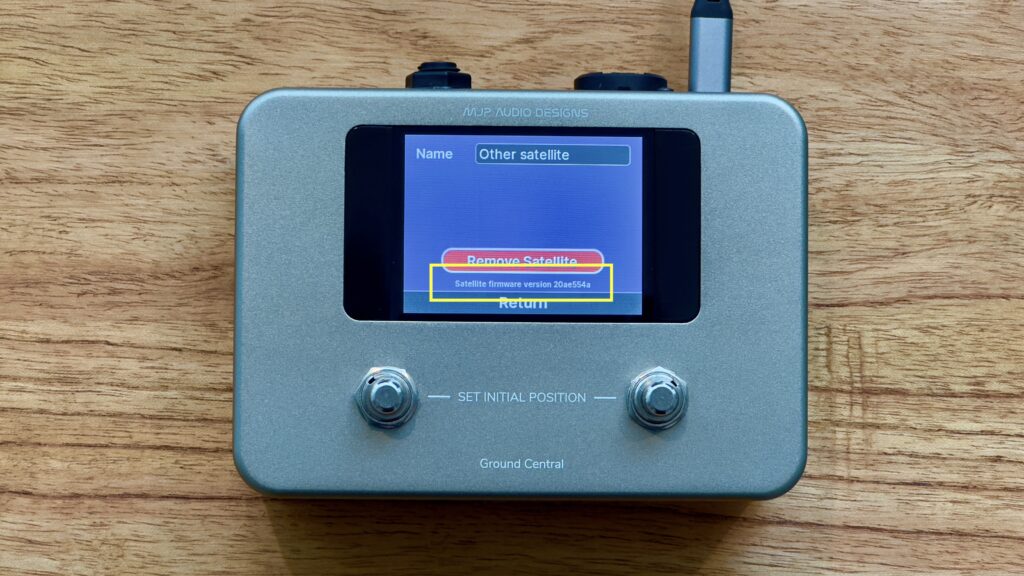
After updating, you can check the installed firmware versions (see reference images below):
- Ground Central: Go to the global three-dot menu.
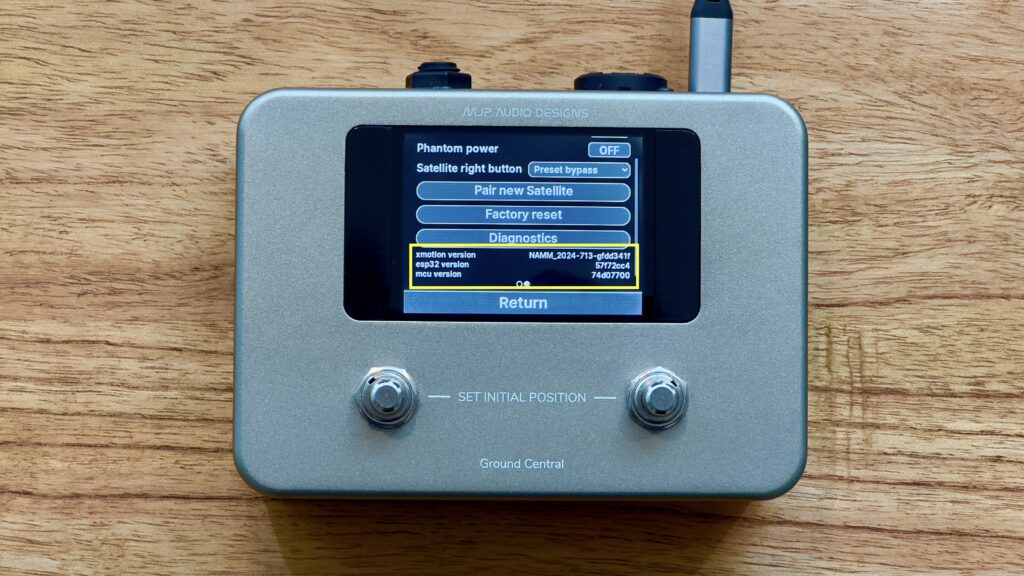
- Satellite: Open the three-dot menu inside the Satellite view, then tap Satellite Configuration.