The Ground Central features an intuitive interface for setting up FX, creating MIDI maps, loading presets, and more. Here’s a quick overview:
Please bear in mind that some UI images in this document may be outdated and may not reflect the latest available firmware version.
Preset Loaded Screen #
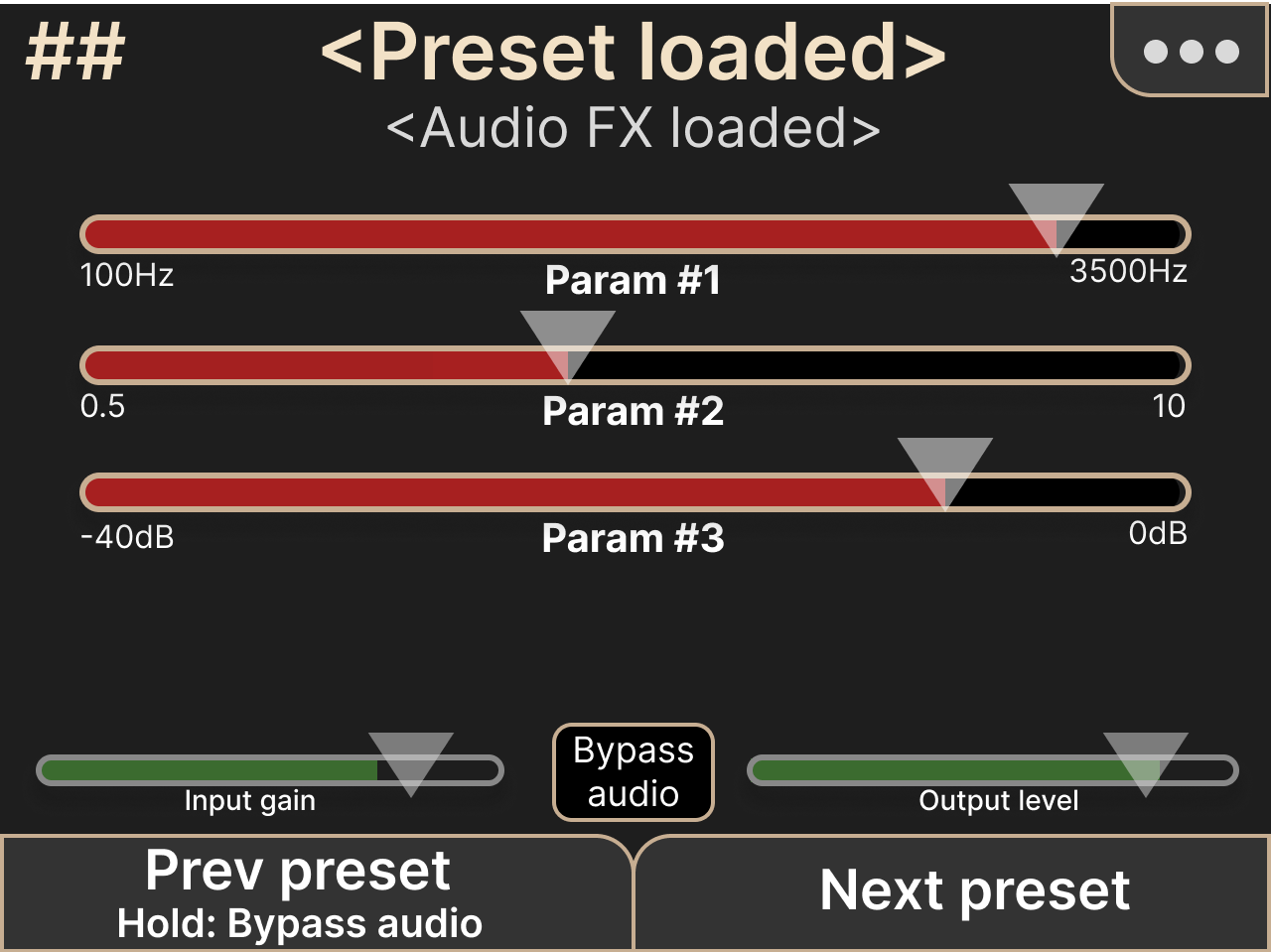
If no Satellite is paired, you’ll see the Preset Loaded view by default. From here, you can pair new Satellites or access the Settings Menu.
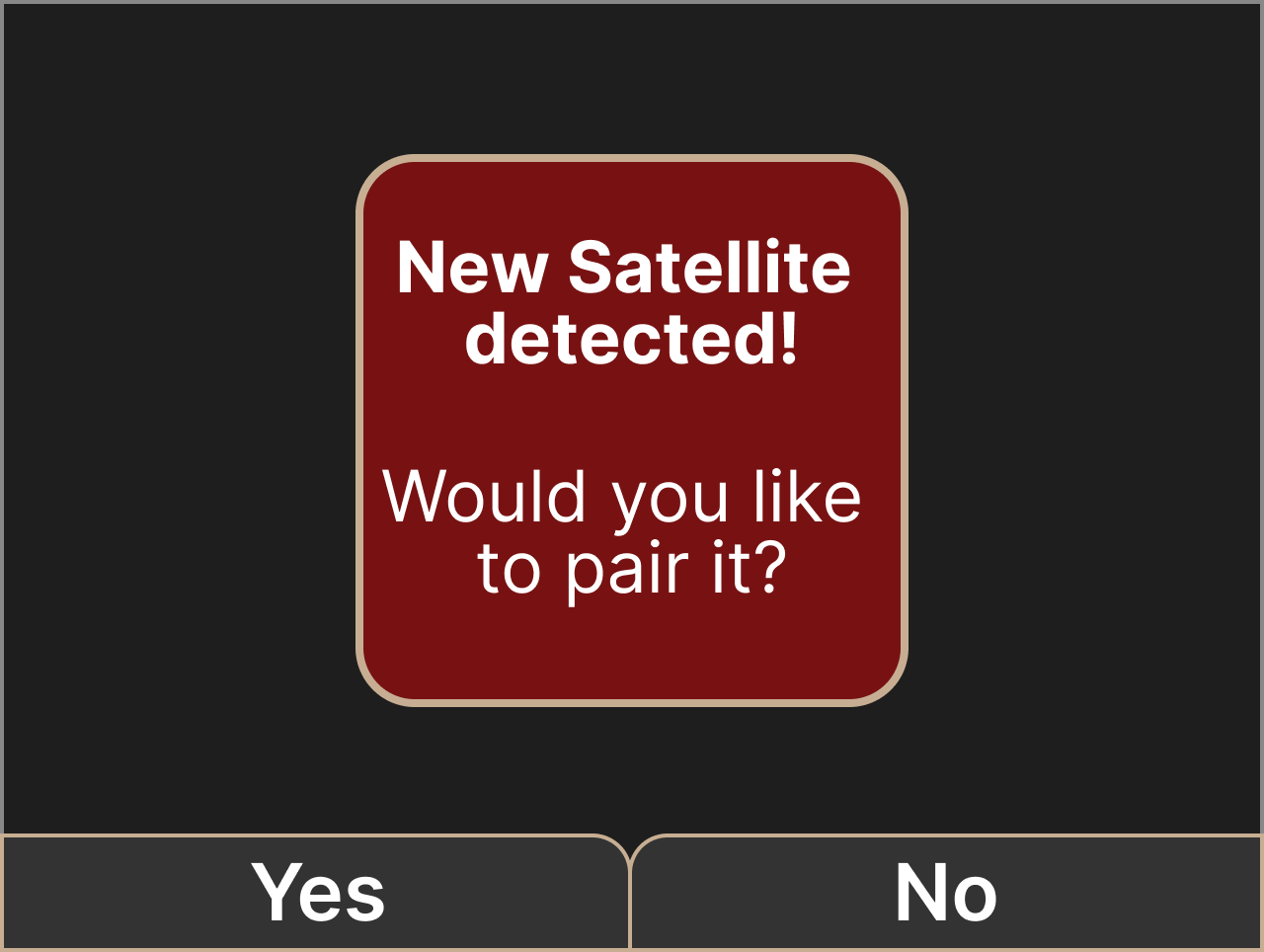
When an unpaired Satellite is powered on, the Ground Central will automatically detect it and display the following screen:
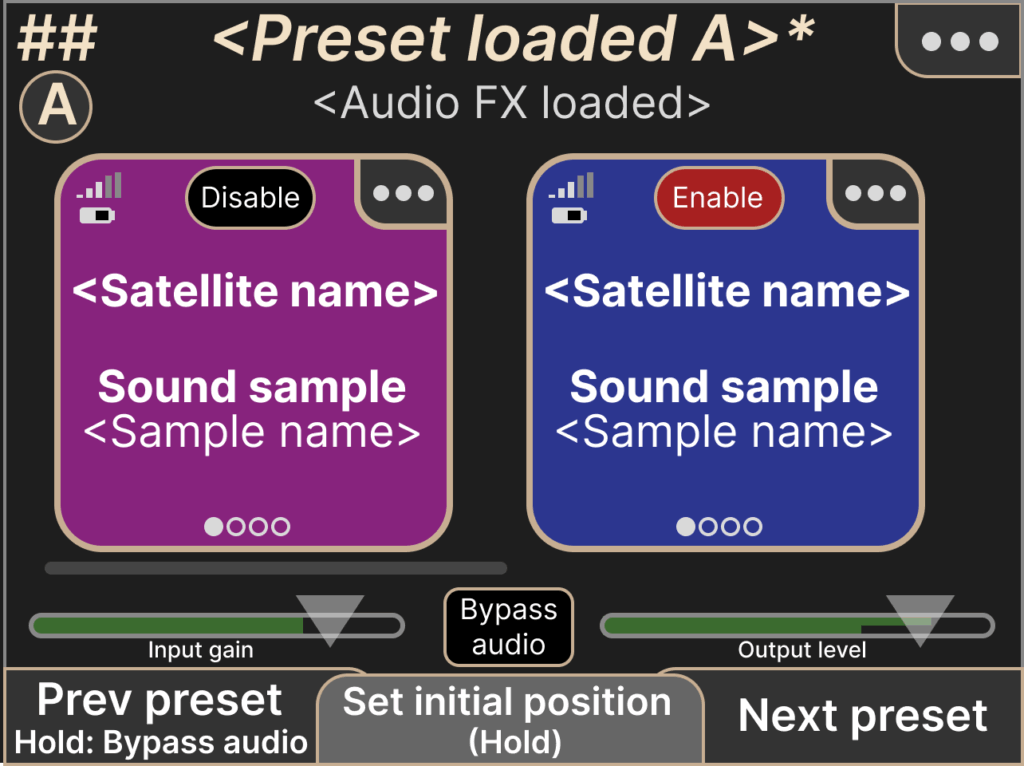
Once at least one Satellite is paired, you’ll see an editable version of the Preset Loaded screen. It displays information for each Satellite, including battery level, signal strength, and assigned functions.
From this screen, you can:
- Navigate and load presets
- Assign and manage audio FX
- Save your current preset
- Access the Settings Menu
- Bypass the audio signal
- Enable / Disable the Satellites tracking
Presets, User Presets, and Factory Presets #
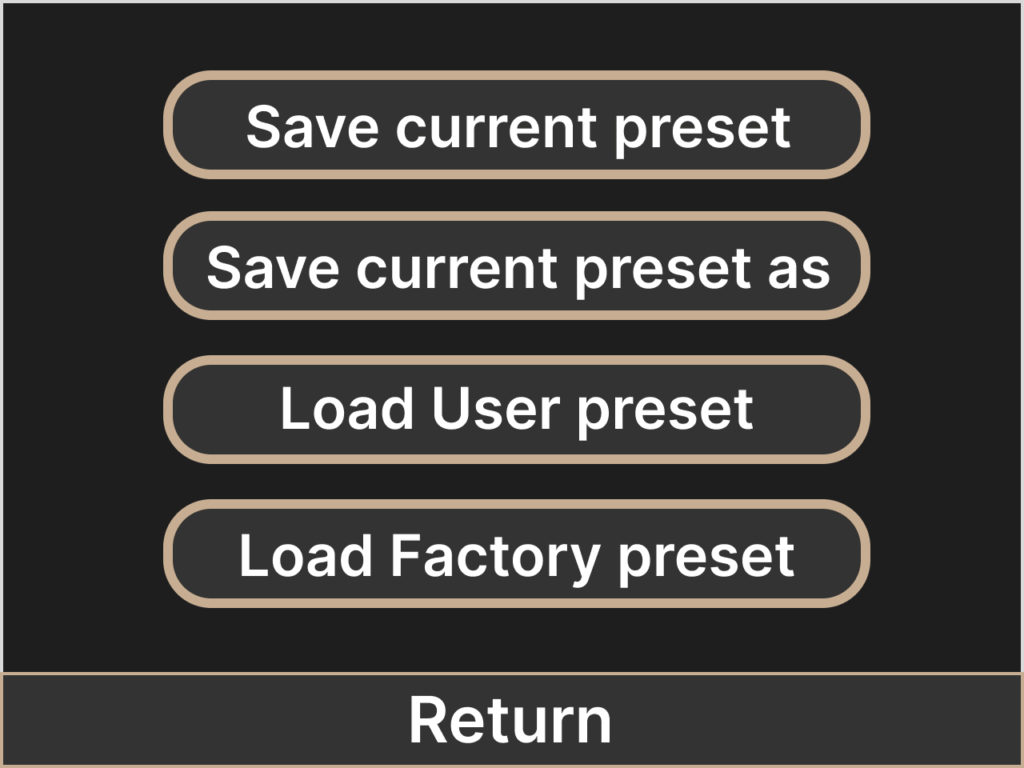
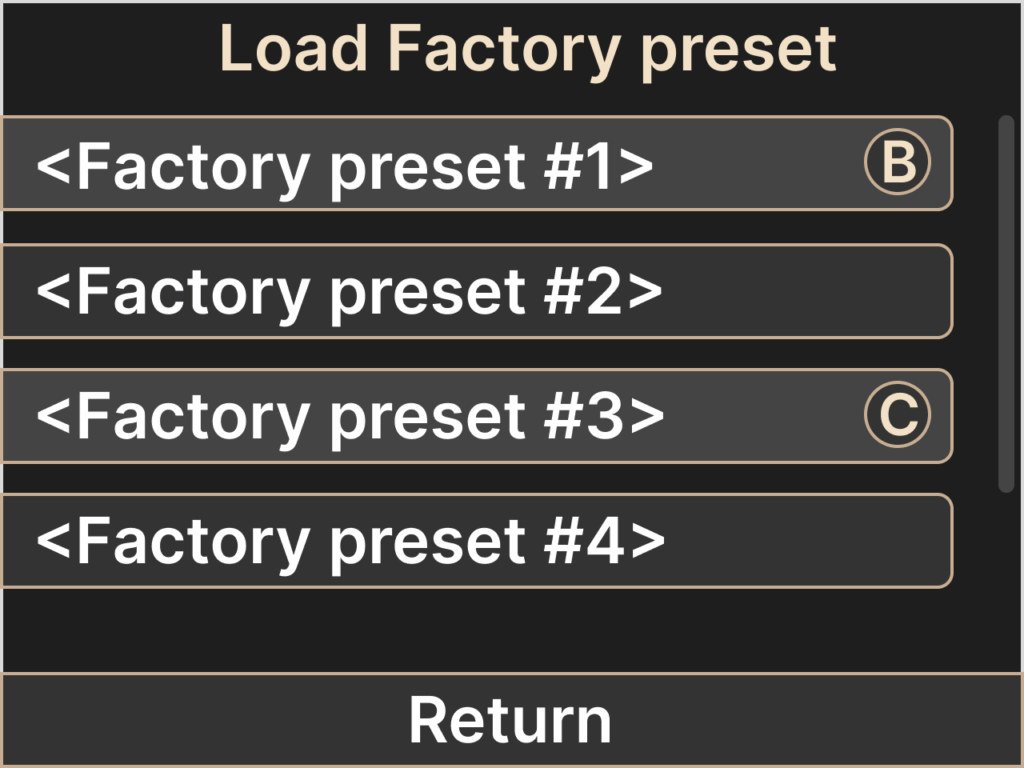
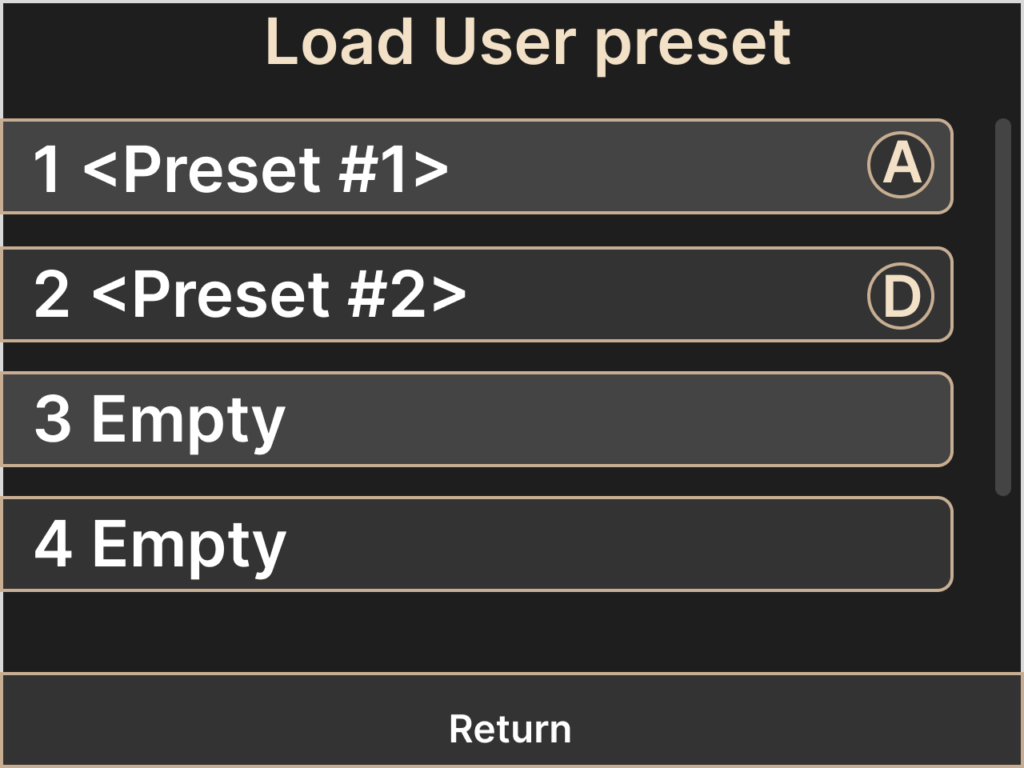
From the Preset Manager, you can load Factory presets, save your own, or recall previously saved User presets. To access the Preset Manager, tap the three dots in the upper-right corner of the Ground Central screen.
Audio FX Screen #
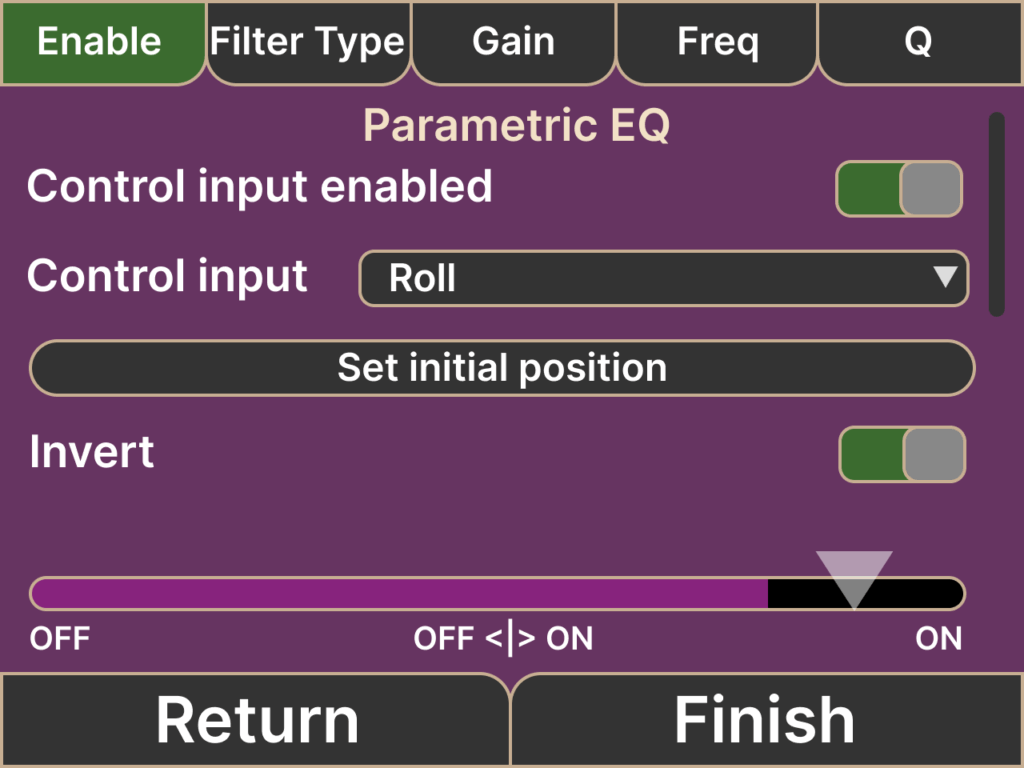
This screen displays details of the currently loaded Audio FX. Choose from effects such as Freeze, Kill Switch, Parametric EQ, Room Reverb, Stereo Panning, Swell, Tremolo, Theremin or Wah-Wah—all of which respond to Satellite motion.
Note: FX parameters can be edited via the Settings Menu.
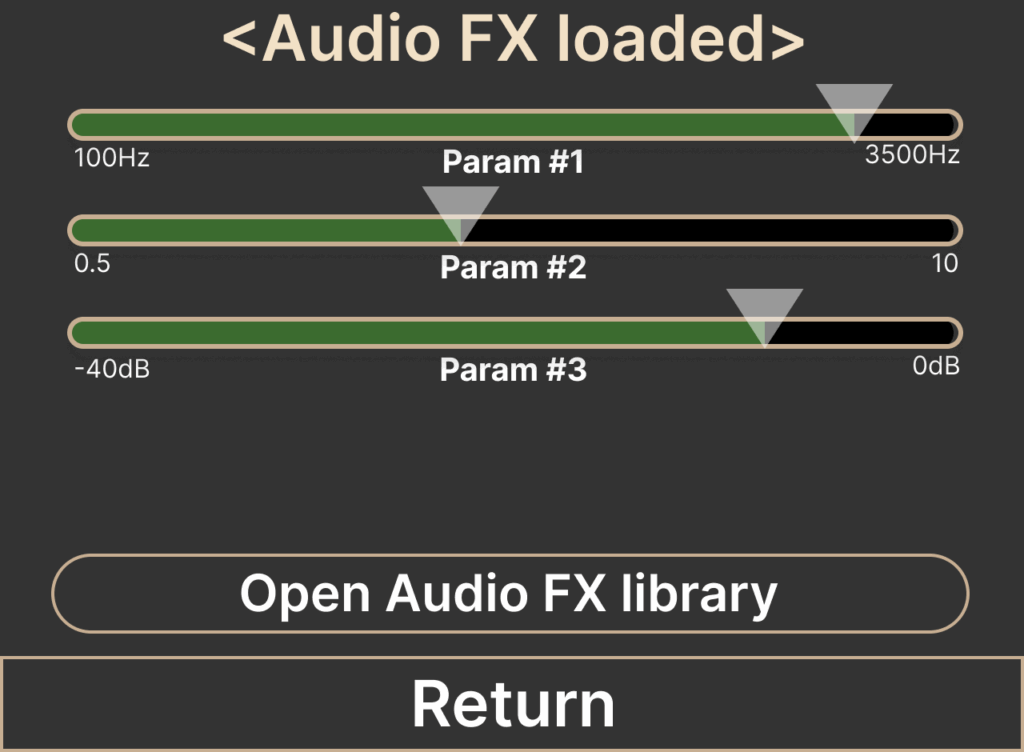
Once at least one Satellite is paired, you’ll find an fully editable version of the Audio FX Loaded screen.
Audio FX library Screen #
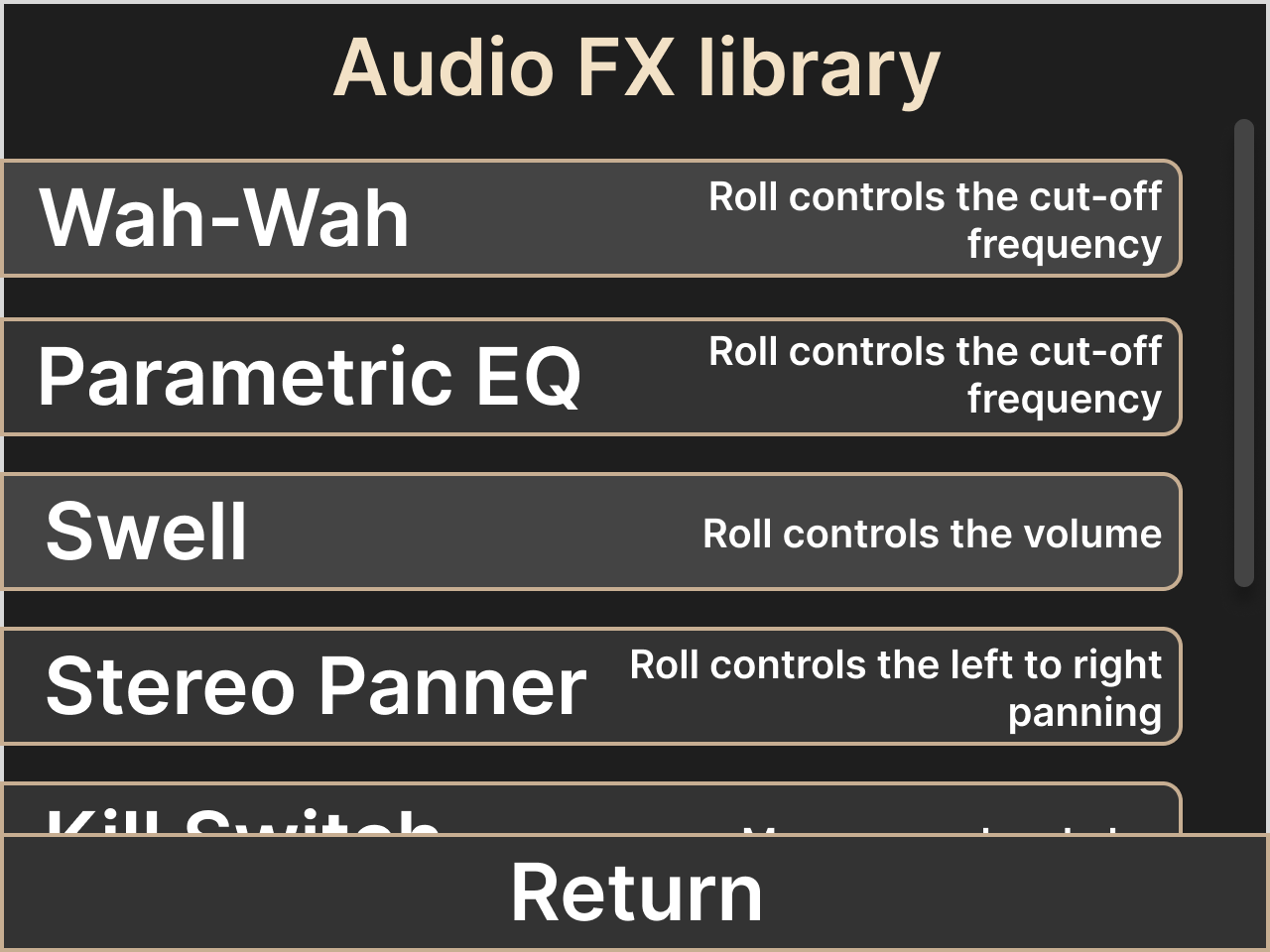
From the Presets Screen, press Audio FX Loaded to open the Audio FX Library, where you can browse and load available FX (e.g., Wah-Wah, Parametric EQ, Swell, Stereo Panner, etc, see Stomp Box Mode section for more audio FXs).
MIDI Configuration Screen #
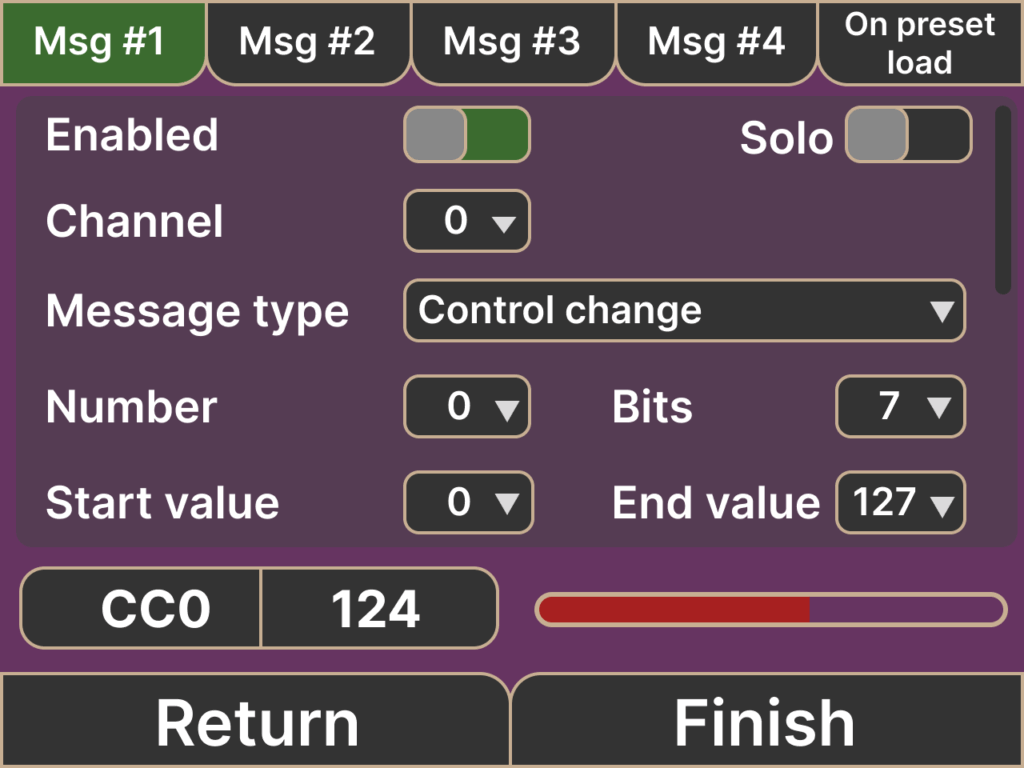
Here, you can assign up to five MIDI messages across different channels, per Satellite. For each message, you can:
- Enable / disable transmission
- Choose message type (Note / Arpeggio, CC, Program Change, Pitch Wheel)
- Set values and MIDI channel.
- Adjust sensitivity, attack, and decay based on the chosen control input (Roll, Up/Down, Left/Right, Acceleration, etc.)
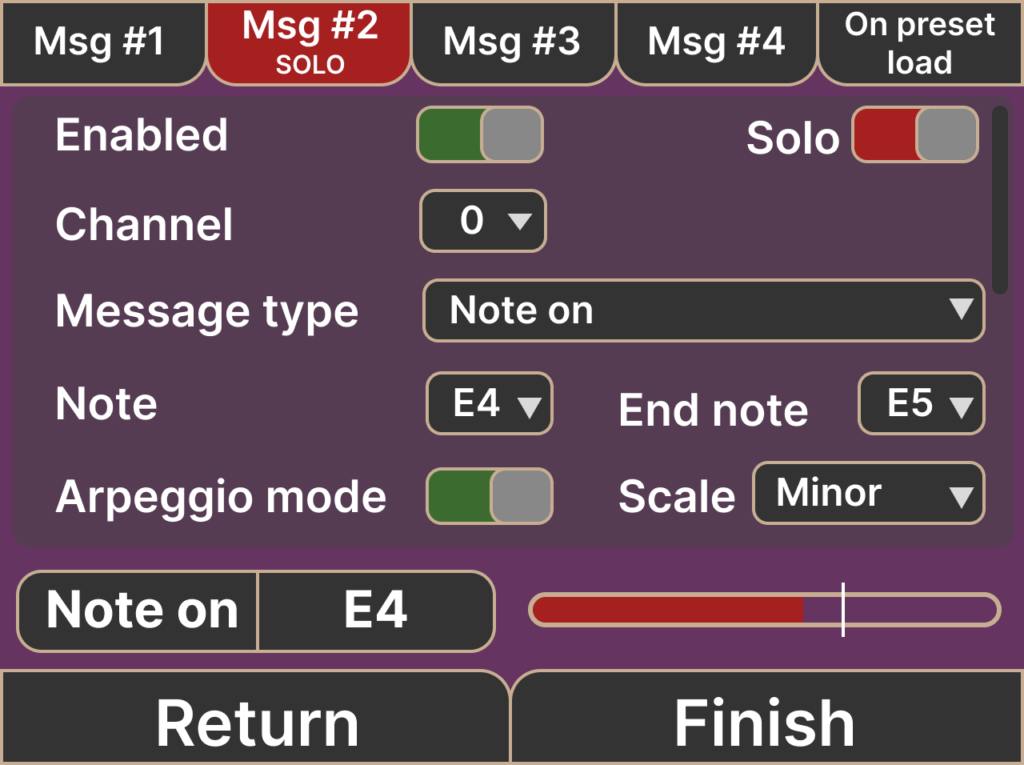
When Note On is selected, you can enable Arpeggio mode to generate a sequence of notes within a defined range, from the root note to the end note. You can also choose from a variety of scales, including Major, Minor, Pentatonic Major, Pentatonic Minor, Ionian, Dorian, Phrygian, Lydian, Mixolydian, Aeolian, and Locrian.
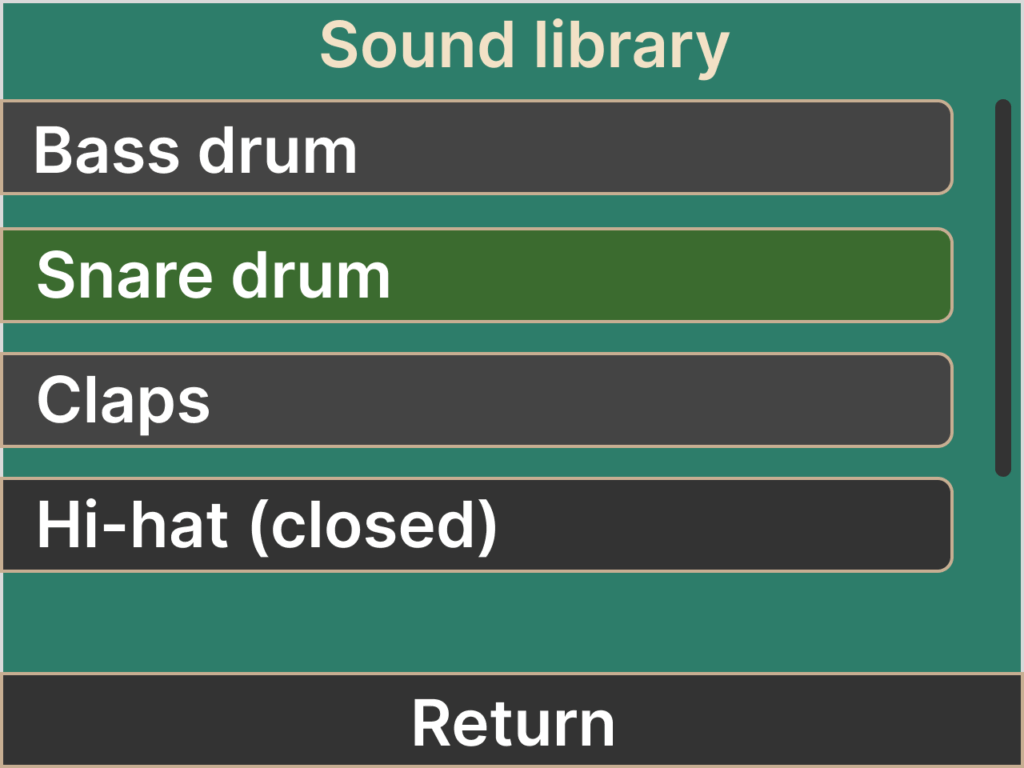
Sound Library #
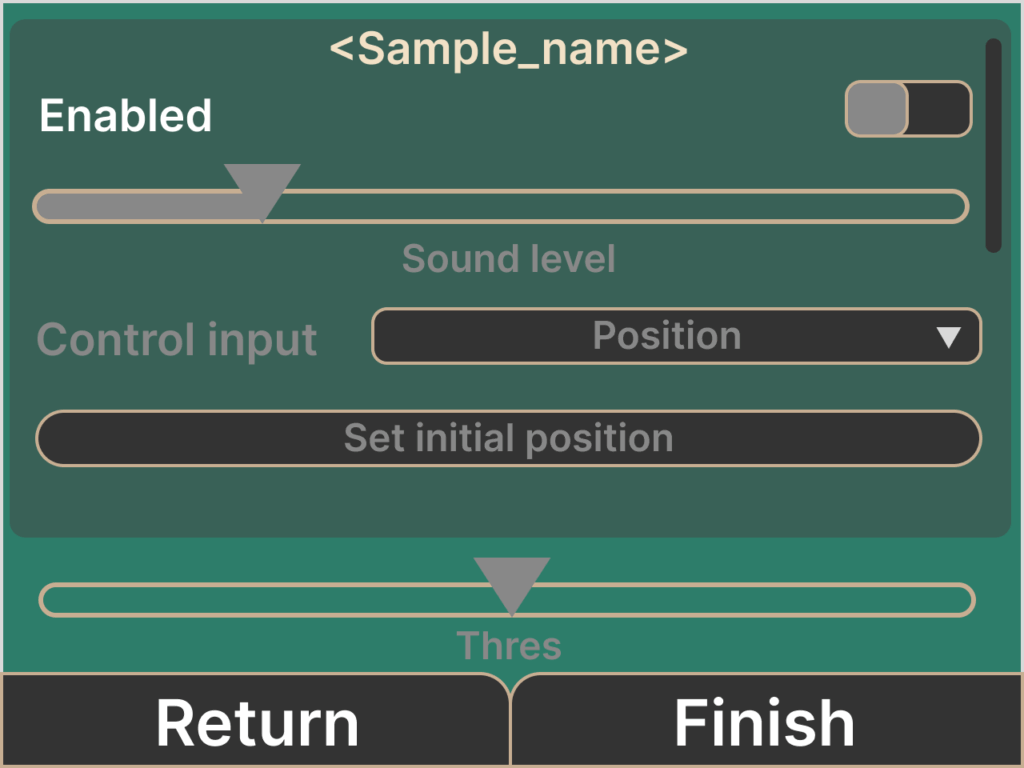
Constellation has a series of pre-loaded Sound samples that you can trigger with any of the tracking movements that the Satellite offers.
You can choose to trigger a Snare Drum sample with your Tilt down movement, adjusting threshold, sensibility, attack, and decay.
Managers and System Settings Screen #
Tap the three-dot icon in the top-right corner of the Main Preset Screen to access Preset and Audio FX manager or System Settings.
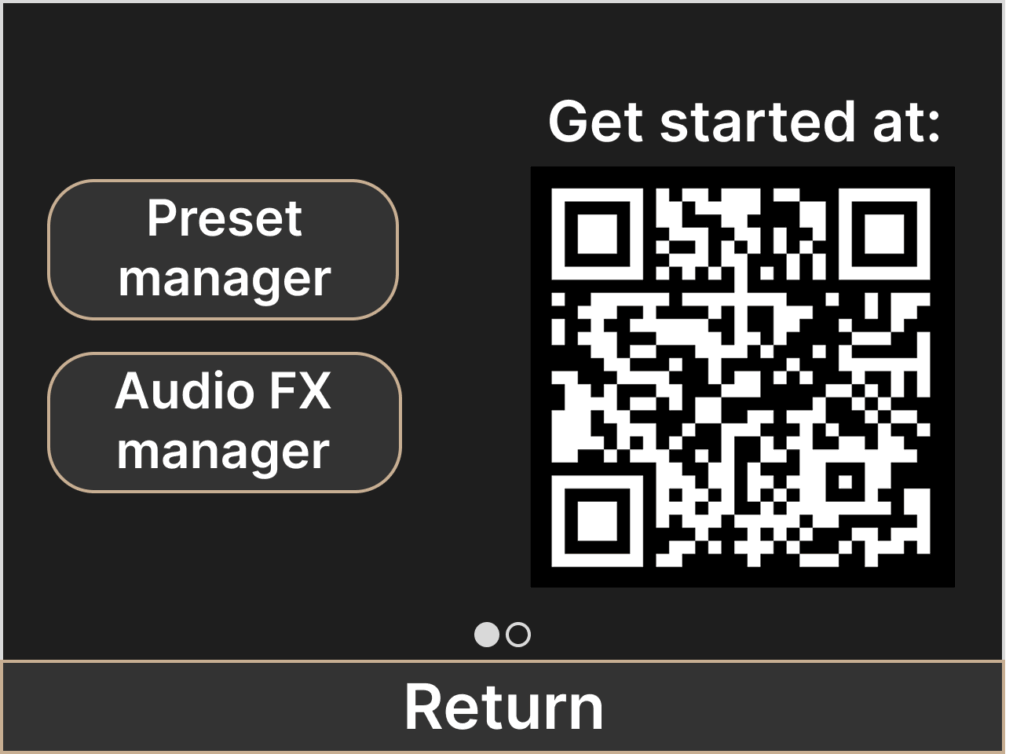
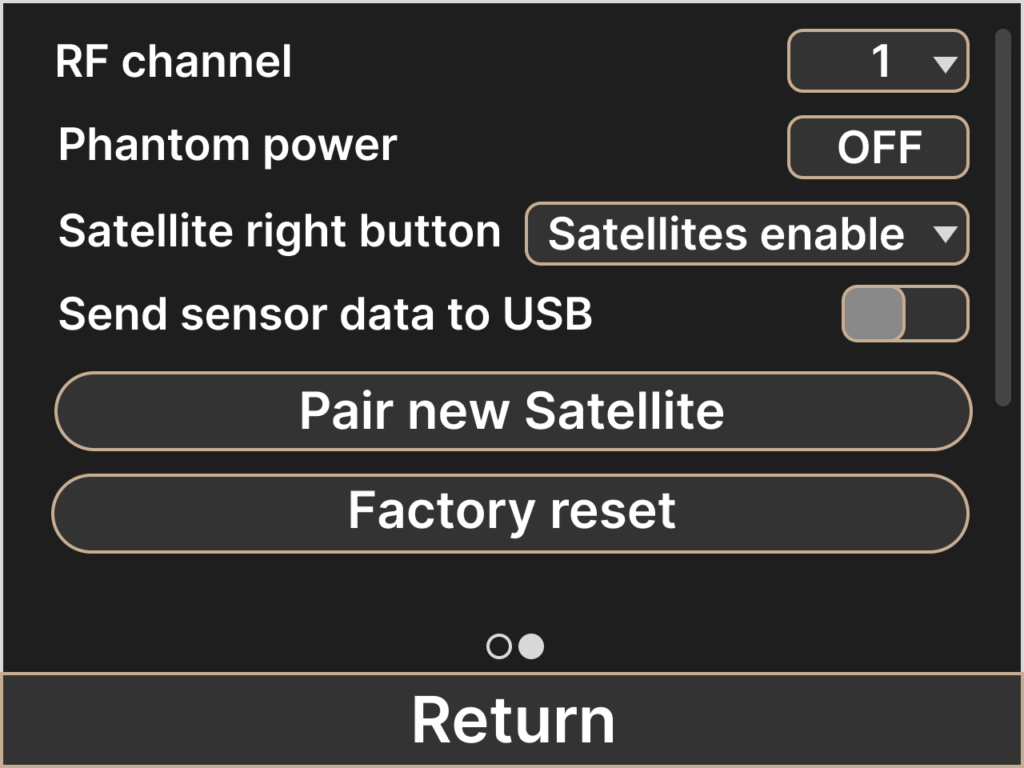
In the System Settings menu you will find:
- RF channel selection – Allows two (or more) Ground Centrals to operate without interference by assigning each one a different RF channel.
- Phantom power for XLR input
- Satellite right-button behavior (e.g., preset bypass)
- Pair new Satellites
- Factory reset
- Diagnostics tools
- Firmware version
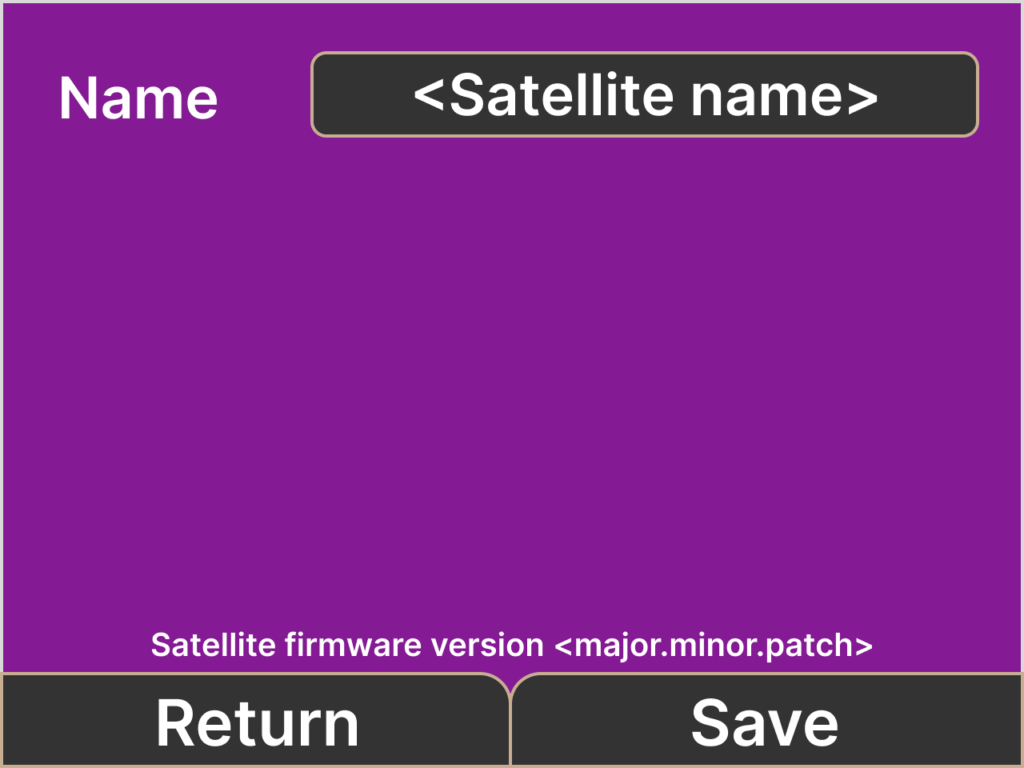
Satellite Configuration Screen
From the Satellite Configuration view, you will be able to rename your Satellite and check the firmware version.
The Satellite’s name will be saved in your current preset.