Updating Your Device Firmware & Factory data #
Follow these steps to update the firmware on your Ground Central or Satellite:
Step 1 #
Download the latest firmware release from the Firmware Updates page here. Once downloaded, look for the Remote Control App inside the release folder and follow Step 2.
Step 2 #
Run the Remote Control app.
Troubleshooting tip – If you are using MacOS Ventura or later, unsigned Desktop Apps are not allowed, so you have to add permissions to our App. First of all, copy the App to the Applications folder. Then, run the following two commands, one after the other (the actual name of the app may require some adjustments):
chmod +x "/Applications/Remote control app.app/Contents/MacOS/Constellation"
xattr -d com.apple.quarantine "/Applications/Remote control app.app/"Please rest assured this will be fixed in an upcoming software update.

Step 3 #
Connect the Ground Central to your computer via the supplied USB cable.
Step 4 #
Update the Satellite Firmware first.
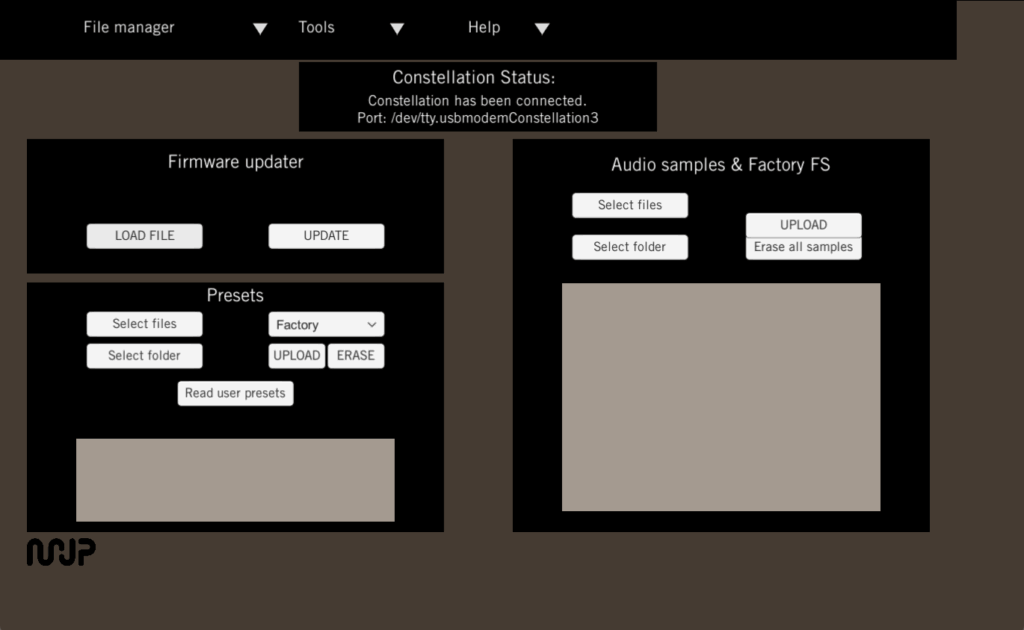
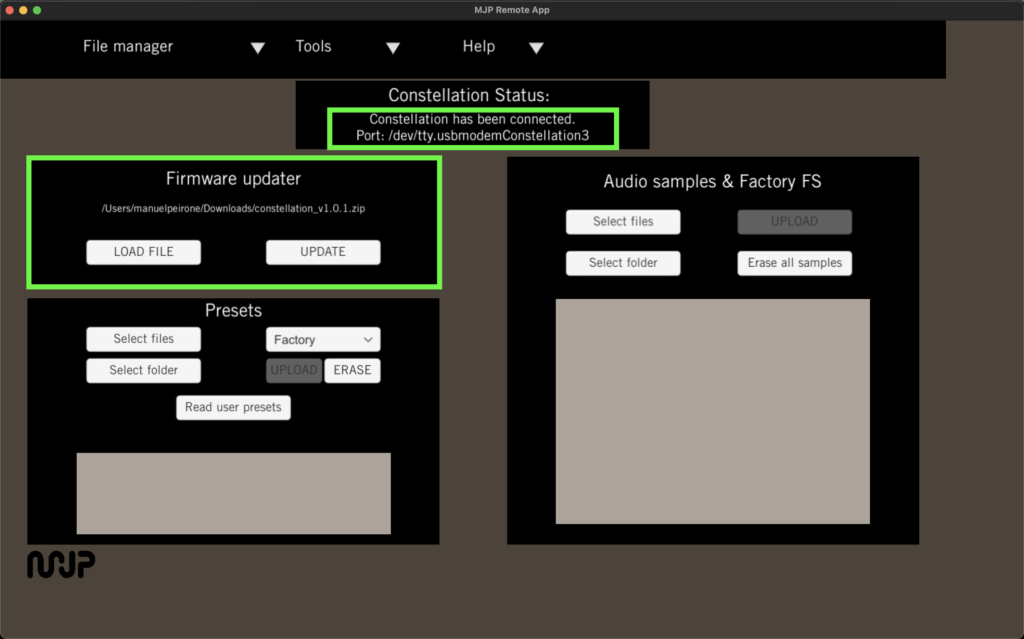
Once the App opens and press LOAD FILE.
When updating a Satellite, make sure the Satellite is turned on.
When updating a Satellite, make sure it is placed as close as possible to the Ground Central and RF Channel 1 is selected in the Ground Central settings.

Select the binary file constellation_satellite_<xx>.bin.
When browsing in the File Manager, the default filter may show only .wav files. To load the correct firmware, switch the filter to .bin files and select the appropriate binary file. See the image below.

Press UPDATE to start the firmware update.
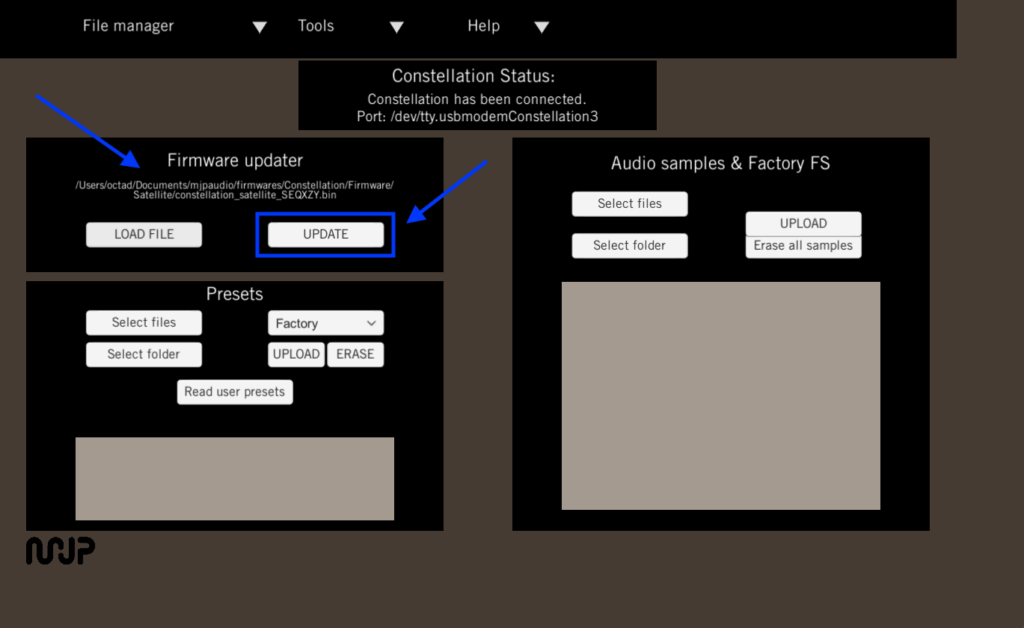


Once the process is complete, the Satellite will be turned Off. Turn it On and wait until the LED stops blinking.
Step 5 #
Update the ESP32 Firmware.
Once the App opens, press LOAD FILE.

Select the binary file constellation_esp32_<xx>.bin.

Press UPDATE to start the firmware update.
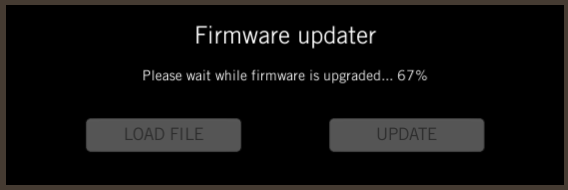


Once the process is complete, the target processor will automatically restart.
Step 6 #
Update the MCU Firmware.
Same as Step 5, press LOAD FILE and select the binary file constellation_mcu_<xx>.bin.
Press UPDATE to start the firmware update.

The Ground Central will not restart automatically, which is not required for this step.
Step 7 (optional) #
The Factory data can be upgraded if a file named factoryFs_xx.bin is included in the bundle. In order to do that, please follow the next steps.
In the Audio samples & Factory FS section click on Select files.

Select the file factoryFs_xx.bin.
When browsing in the File Manager, the default filter may show only .wav files. To load the correct firmware, switch the filter to .bin files and select the appropriate binary file. See the image below.

Click on UPLOAD.

Wait while the file is uploaded.

Verifying versions #
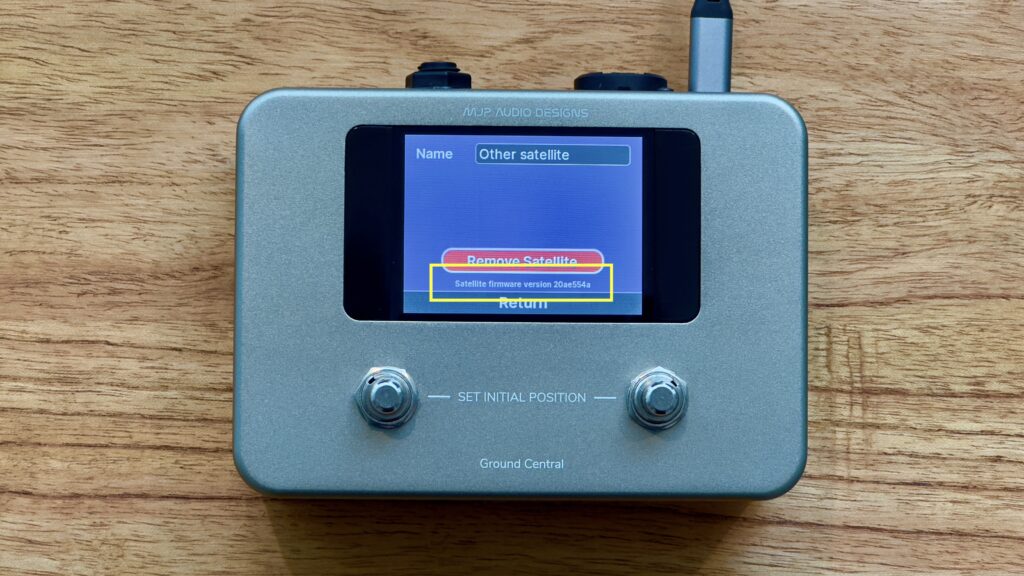
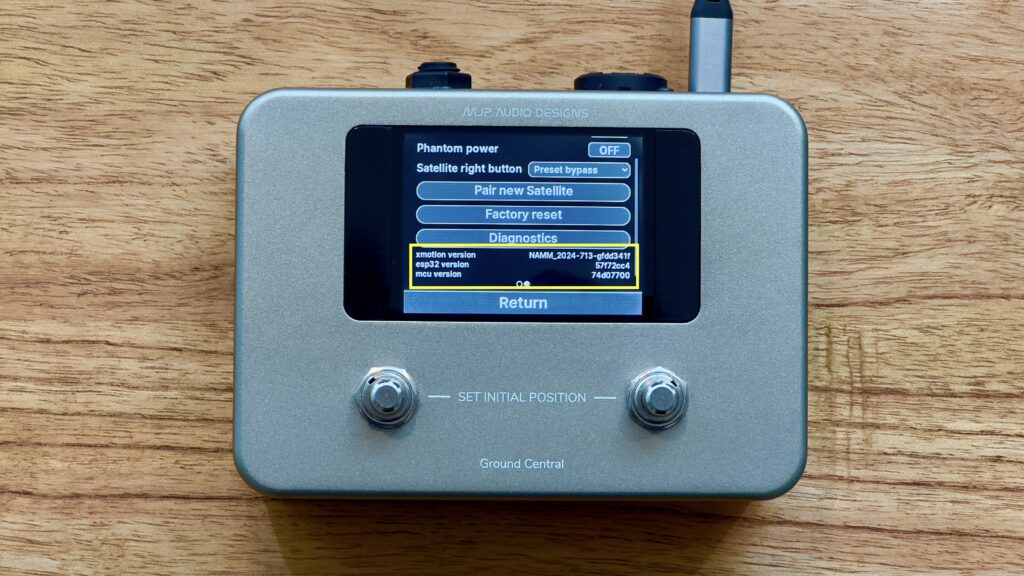
After updating, you can check the installed firmware versions (see reference images below):
- ESP32 and MCU: Go to the global three-dot menu on Ground Central.
- Satellite: Open the three-dot menu inside the Satellite view, then tap Satellite Configuration.